
Adding, Editing, Deleting & Printing Purchase Credit Note in Ginesys Web
A credit note in GST is a document issued by the buyer in the following cases:
Supplies are returned or found to be excessive by the recipient - When goods supplied are returned to the seller, or goods/services supplied are found to be in excess of transfer document by the recipient, the buyer should issue a Credit Note. The credit note serves the purpose of increasing the value of the original supply.
Decrease in taxable value - When a buyer requires to increase the taxable value of a supply, he/she has to issue a credit note to the vendor.
Decrease in GST charged in invoice - When a buyer requires to increase the rate or value of GST charged in an invoice, he/she has to issue a credit note to the vendor.
Prerequisites
- The users' role must have access to the Add app operation in the Purchase Credit Note feature in Procurement - Operation - Invoicing through Roles in Ginesys Web - Admin - Security.
- Document Numbering Scheme must be present for the module.
Step-by-step guide
The process is divided into the following steps:
- Go to Ginesys Web > Procurement > Operations > Invoicing > Purchase Credit Note.
- Purchase Credit Note module will open.
- All the previously created Documents will be listed here.
- Click on Add button.
- Purchase Credit Note window will open.
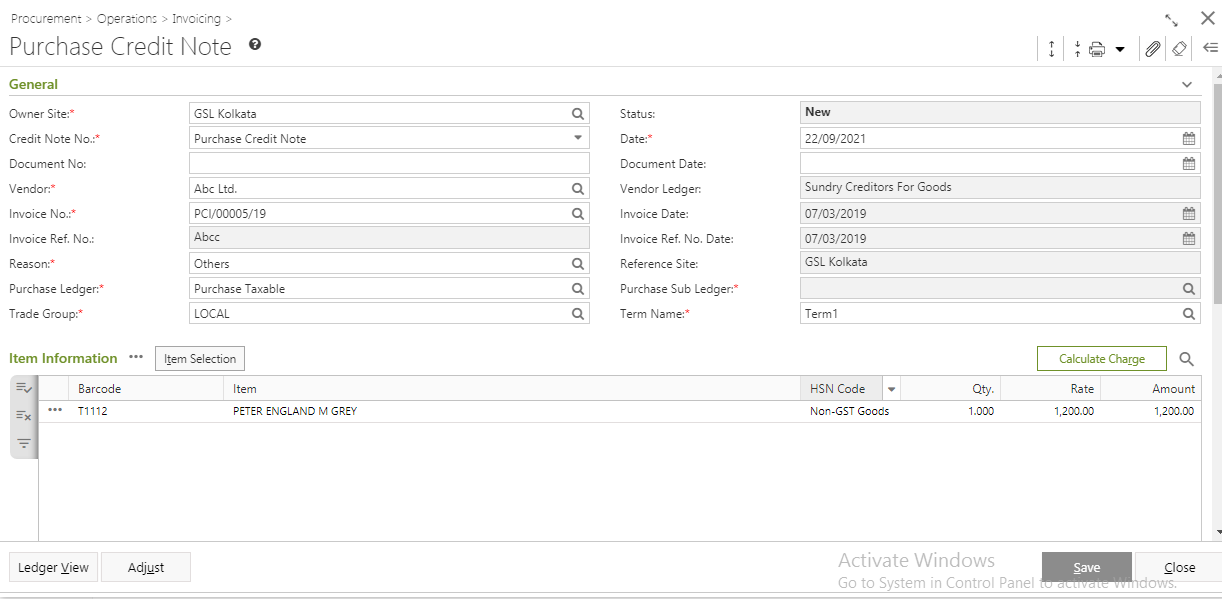
- You will get group of icons at the top right corner of the window

- Expand All: Clicking on this icon, all the sections will be Expand if they are collapsed.
- Collapse All: Clicking on this icon, all the sections will be Closed if they are expanded.
- Print Barcode: Clicking on the Down Arrow beside this icon, you will get Print Preference option. This option is used to print barcode.:
- Attachments: You can Upload some required documents from this option.
- Clear Form: Clicking on this icon, you can Clear all the data already entered.
- Open Side Panel: Clicking on this, you will get the details of the current Purchase Credit Note as follows:
- Document Summary: In this section you will get the details of Selected Items, Sale Type, Owner Site, Modified by etc.
- Customer Details: You will get the Selected Customer Details like Address, Contact Details, Tax Region, Credit Limit, Overdue Amount etc.
- Customer Statistic: This section describes the Delivered not Invoiced amount, Outstanding Amount, Last Invoice Date etc.
- You will get three sections - General, Item Information and Others.
- General:
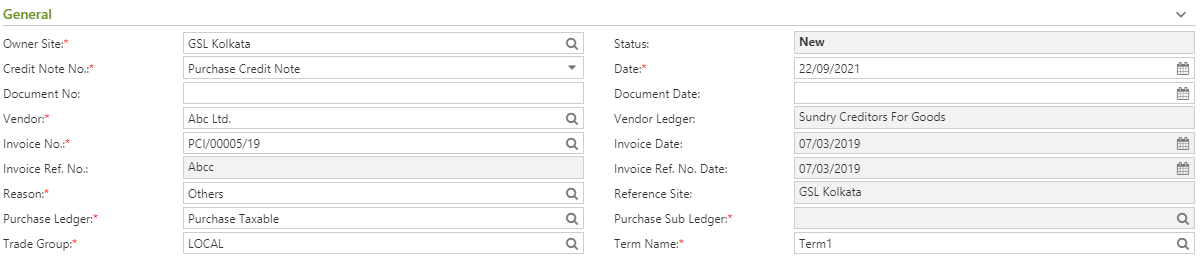
- Select the Owner Site (Mandatory Field) for which you want to create the Purchase. By default, it will be populated with the connected site.(Owner Site wise General Ledger selection is applicable).
- Select Credit Note No. from the drop down list (Mandatory Field).
- Select the Vendor (Mandatory Field) from the lookup window. Vendor Ledger will be auto-populated as per Vendor.
- Select the Invoice No (Mandatory Field) from the lookup window. Invoice Date, Invoice Ref. No. Date, Reference Site,Purchase Ledger, Purchase Sub Ledger, Term Name, Trade group etc will be auto-populated as per Invoice no.You can change the Trade Group, Purchase ledger & Term Name.
- Select Reason (Mandatory Field) from the lookup window.
- System date will be populated in the Date field (Mandatory Field). You can change the date as per your requirement. You can only select the past date from the system date but not any future date.
- Item Information:
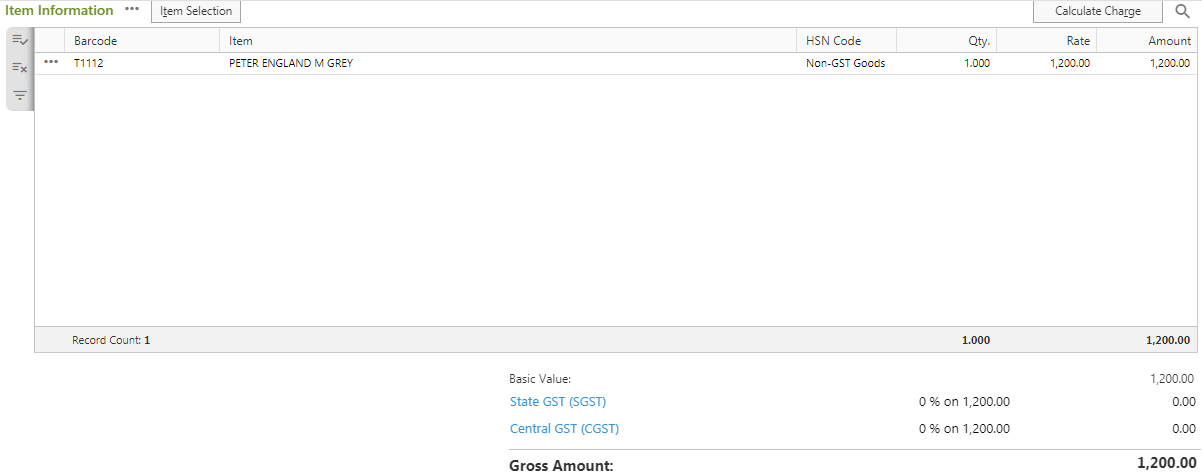
- You will get Item Selection option.
- Items window will open.
- You will get three options to add items - Select Item, Scan Item and Import Barcode. Select item through any one of the option.
- The item will be populated with Barcode,HSN Code, Quantity, Inv Amount etc.
- You will get Quick Population option - Amount and Percentage.
- You need to put value according to the selected option.
- Click on the Populate button.
- The Item(s) will be populated in the Item Information of the main window Barcode,HSN Code, Quantity, Inv. Amount etc.
- If you click on the
 button left side of the populated item, you will get a drop down list.
- Now you need to calculate Charge. Click on the Calculate Charge button. But even if you skip this step, charges applied will be automatically calculated on saving the form.
- Charge will be calculated and the final amount after charge application will be populated as Net Amount.
If you click on any applicable charge, Applicable Item window will open. You can alter the charge factor if you have enabled the proper user profile setting.
The applicable charge amount or discount amount will be divided between all the items.Note: If you want to calculate the charge of Adhoc items, you need to select Term Name in the General section. Otherwise you will get a message - "Term selection is required to calculate charges of items without Order. Please select Term to calculate charges."
The charge will be calculated as per the Term selected.
If you save the Purchase Credit Note without charge calculation, you will get an alert message - "Charge is not calculated yet. On saving this entry, Charge will be automatically calculated based on selected Term. Please confirm to proceed."
- Others:

- You will get the Ledger View and Adjust document to adjust document and get a overall ledger view.
- Click on the Save button to save Purchase Credit Note. You will get a message "Document <Purchase Credit Note No.> saved successfully."
Prerequisites
- The users' role must have access to the Edit app operation in the Purchase Credit Note feature in Procurement - Operation - Invoicing through Roles in Ginesys Web - Admin - Security.
- Purchase Credit Note must be created.
Step-by-step guide
The process is divided into the following steps:
- Go to Ginesys Web > Procurement > Operations > Invoicing > Purchase Credit Note.
- Purchase Credit Note module will open.
- All the previously created Document.
- Select the Purchase Credit Note you want to edit.
You can use Filter to search particular Purchase Credit Note.
Note: If you select multiple Purchase Credit Note, you will get the Edit option disabled. You cannot edit multiple Purchase Credit Note at a time.
- Go to Action > Edit.
- Edit: Purchase Credit Note window will open.
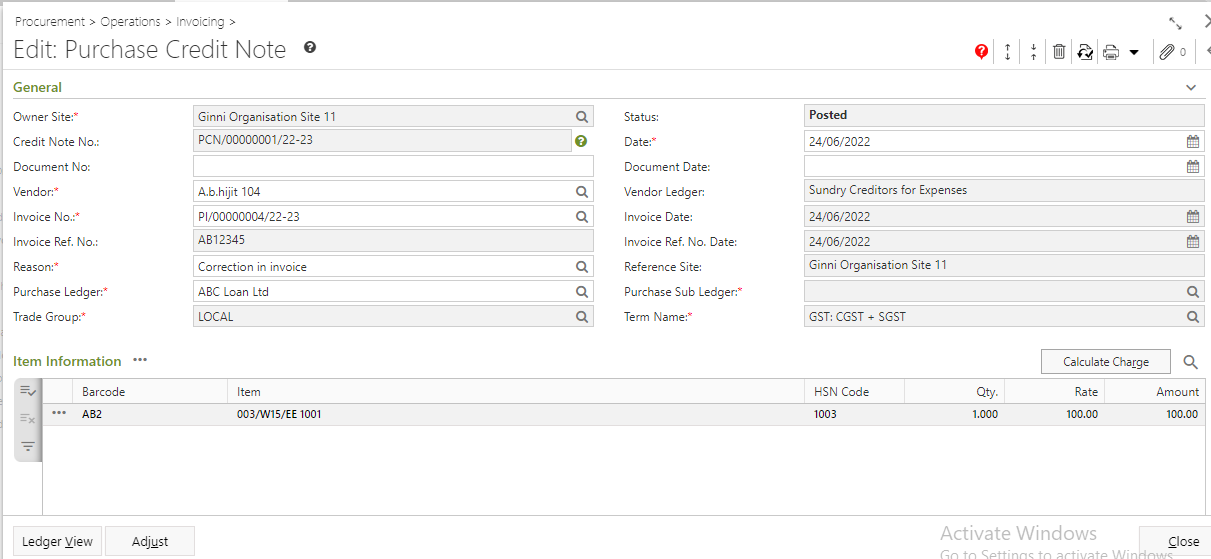
- All the details will be populated.
- You will get the Ledger View and Adjust document to adjust document and get a overall ledger view.
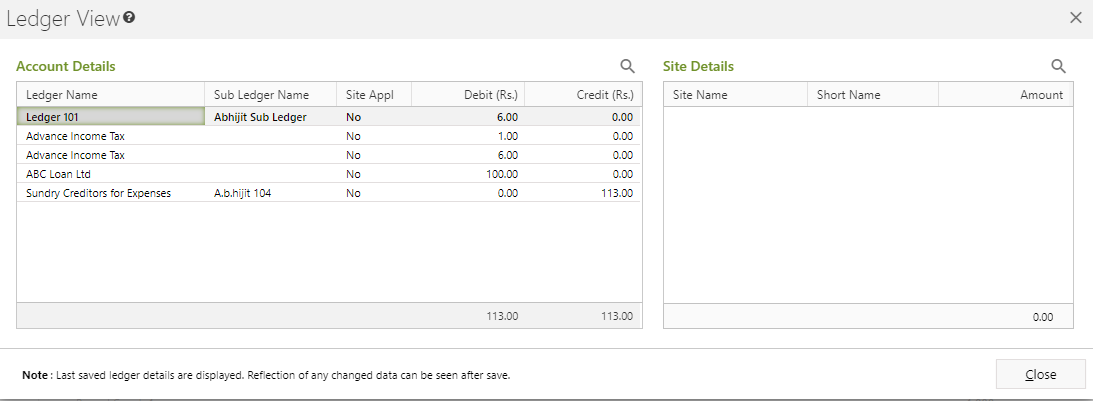
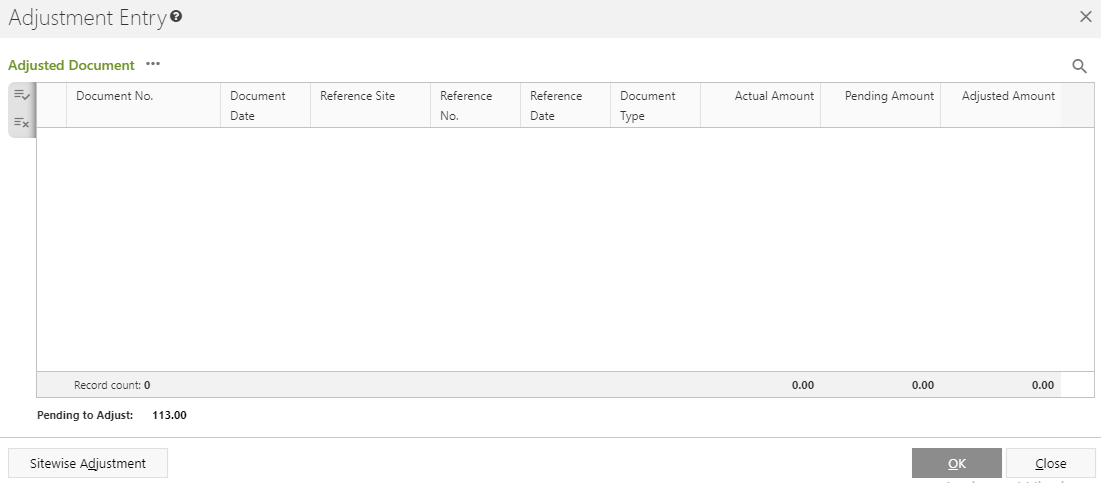
- You can modify Destination Site. You will get a message - "Change of Destination Site will clear the entry. Please confirm".
- You can add or remove item(s).
- Click on the Save button to save the modified Purchase Credit Note.
You will get a message - "Document <Purchase Credit Note No.> saved successfully.".
Information

You will get Show Message, Delete and Revert icon in the Edit mode with others icons at the top right corner of the window.
Show Message: You will get a message regarding edit of Purchase Credit Note.
Delete: You can Delete the Purchase Credit Note from the Edit Mode by clicking on this icon.
Revert: You can Revert the Purchase Credit Note from the Edit Mode by clicking on this icon.
Prerequisites
- The users' role must have access to the Delete app operation in the Purchase Credit Note feature in Procurement - Operation - Invoicing through Roles in Ginesys Web - Admin - Security.
- Purchase Credit Note must be created.
- Purchase Credit Note must be Un-Posted.
Step-by-step guide
The process is divided into the following steps:
- Go to Ginesys Web > Procurement > Operations > Invoicing > Purchase Credit Note.
- Purchase Credit Note module will open.
- Select the Purchase Credit Note you want to delete.
You can use Filter to search particular Purchase Credit Note.
- Go to Action > Delete.
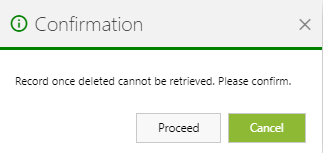
- You will get a message - "Document once deleted cannot be retrieved. Please confirm."
- If you click on Yes, you will get a confirmation message "<Purchase Credit Note No:> - Successfully deleted".
Prerequisites
- The users' role must have access to the Release app operation in the Purchase Credit Note feature in Procurement - Operation - Invoicing through Roles in Ginesys Web - Admin - Security.
- Purchase Credit Note must be created.
- Purchase Credit Note must be Un-Posted.
Step-by-step guide
The process is divided into the following steps:
- Go to Ginesys Web > Procurement > Operations > Invoicing > Purchase Credit Note.
- Purchase Credit Note module will open.
- Select the Purchase Credit Note you want to release.
You can use Filter to search particular Purchase Credit Note.
- Go to Action > Release.
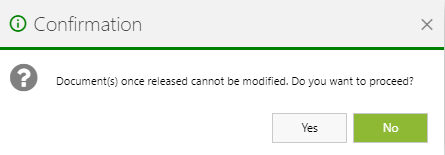
- You will get a message - "Document(s) once released cannot be modified. Do you want to proceed?"
- If you click on Yes, you will get a confirmation message "Credit No <Purchase Credit Note No:> - Released Successfully ".
Prerequisites
- The users' role must have access to the Revert app operation in the Purchase Credit Note feature in Procurement - Operation - Invoicing through Roles in Ginesys Web - Admin - Security.
- Purchase Credit Note must be created.
- Purchase Credit Note must be Un-Posted.
Step-by-step guide
The process is divided into the following steps:
- Go to Ginesys Web > Procurement > Operations > Invoicing > Purchase Credit Note.
- Purchase Credit Note module will open.
- All the previously created Document.
- Select the Purchase Credit Note you want to revert.
You can use Filter to search particular Purchase Credit Note.
- Go to Action > Revert.
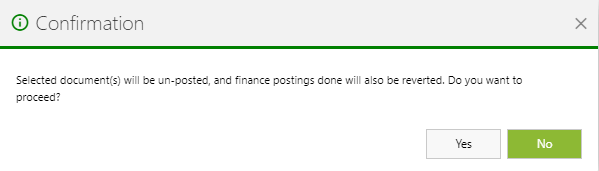
- You will get a message - "Selected document(s) will be un-posted, and finance postings done will also be reverted. Do you want to proceed?"
- If you click on Yes, you will get a confirmation message "Credit No <Purchase Credit Note No:> - Reverted Successfully".
Total Debit / Credit Amount can be apportioned to the selected items of the tagged invoice from version 12.4.4 onwards.