
Creating, Editing & Printing Bill of Material (BoM) in Ginesys Web
- Deepankana Roy (Unlicensed)
- Aparajita Basu Roy
- Subhasree Banerjee (Unlicensed)
- Debrupa Datta (Unlicensed)
A Bill of Materials (BoM) is a complete list of the raw materials, assemblies, sub-assemblies, parts and components, as well as the quantities of each, needed to manufacture a product. In a nutshell, it is the comprehensive inventory of every item that is required to build a product. At its most complex, a BoM is a multi-level document that provides data required for creating multiple sub-assemblies (products within products) and includes for each item: barcode, assembly item and route id and a whole range of component descriptors. It may also include attached reference items, such as part retail manufacturing items.
For example, if a bicycle manufacturer wants to make 1,000 bicycles. A bill of materials for a bicycle will include all the parts that make up the bicycle such as seats, frames, brakes, handlebars, wheels, tires, chains, pedals and crank-sets, including the quantities required of each component.
Need of BoM
The BoM is a ready reference for the required materials and their relative quantities needed for the production of one unit an item - a list of raw materials, sub-assemblies, intermediate assemblies, sub-components and components.
A well-defined BoM helps:
- Plan purchases of raw materials
- Estimate material costs
- Gain inventory control
- Track and plan material requirements
- Maintain accurate records
- Ensure supply robustness and reduce waste
Ginesys has a multilevel BoM, which offers greater details and specificity on the parent and child parts in the product. In a multilevel BoM, the total material required is shown. Additionally, the product structure is indented to show the relationship between the parent and child product, as well as assemblies and sub-assemblies.
Sometimes the user in a hurry to create multiple BoMs often misses out on approval of a few. So he will be reminded through a message asking to approve the BoMs right at the time of saving the BoMs and can go in for a single shot creation and approval process.
Duplicate BoMs can now be created to save time and effort of our users. Creation and approval of BoMs separately take a lot of time and effort. Just search and select the appropriate BoM and click on the Duplicate button. New version of the BoM will be created for both approved and unapproved BoMs.
Prerequisites
- The users' role must have access to the Bill of Material feature by enabling Add app operation for the feature in Admin - Security - User - Role through Production - Setup - Manage.
- Assembly Item must be tagged to the Route Group selected in the BoM.
- Processes must be created.
Step-by-step guide
The process is divided in the following steps:
- Go to Ginesys Web > Production > Setup > Manage > Bill of Material.
- Bill of Material module will open
- Click on Add button.
- Add: Bill of Materials window will open.
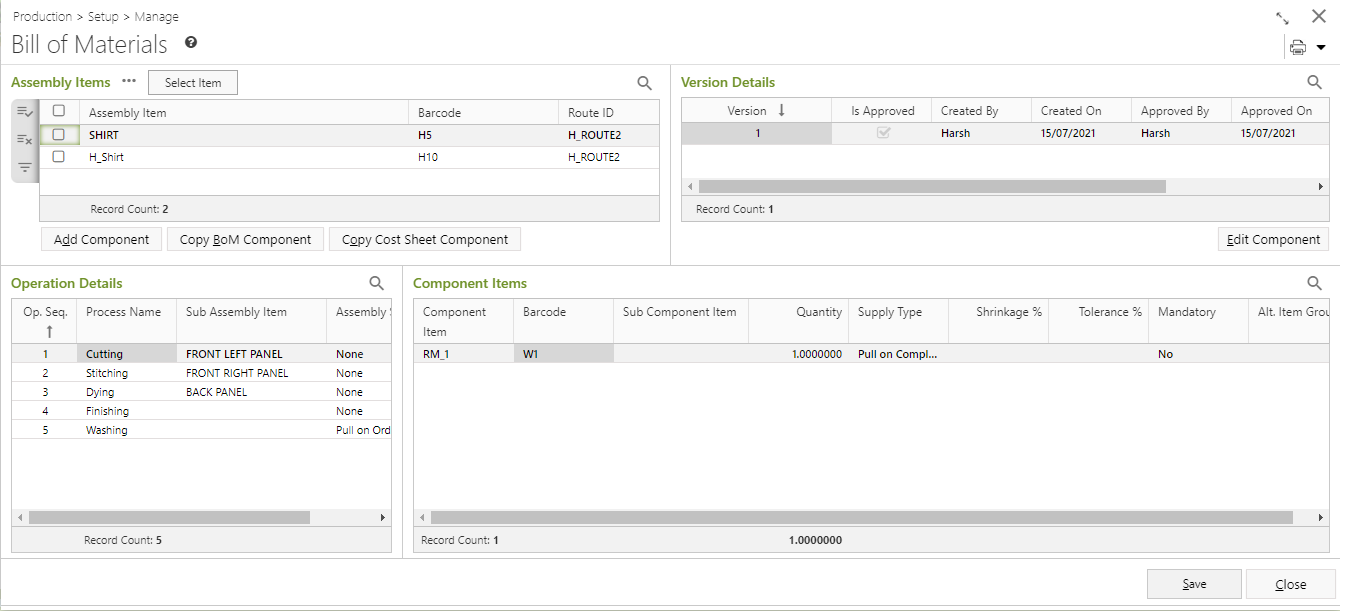
- You will get three sections - Assembly Items, BoM Version Details, Operation Detail and Component Item.
- Assembly Items:

- You need to select the Assembly Item or Finished Goods you want to process.
- Select the Items by clicking on Select Item button.
- Production Select Item will open.
- You can select items either by Scanning Barcode or by using Search Criteria.
- Select the searched items you want to populate.
- Click on Populate button.
If selected finished items are without Sub Assembly Item, then a blank window opens; where neither operation sequence, process or components will be pre-populated. Selection lookup has been provided for process name and components.
Process Selection:
- Only processes which belong to the Route of the items selected are displayed in the Process lookup. Operation sequence of the process will get auto populated as per route definition.
- A process can be selected once only but multiple process can also be selected at one go.
Component Selection:
- One or more component can be selected for each process although Assembly Items cannot be selected as components.
- At least one component must be specified for all the process selected.
- If not then an alert is displayed, "There are process with no component selected. Overwrite may remove the existing raw materials. Do you want to proceed." If Yes is selected, then the process proceeds. If No is selected then the cursor will be moved to the first process without components.
- When components are manipulated, alerts are displayed to seek user input for " Append / Overwrite / Merge".
- If Append is selected, the new components with quantity are added at the end of existent components.
- If Overwrite is selected, then delete the existing component for the selected process and insert the new components with quantity and other details.
- If Merge is selected, then Add the new components with quantity and merge the components already existing.
- If last version is approved then create new version but if last version for the BoM is Unapproved then edit that unapproved version itself.
- To operate the component items for a single finished item selected -
- The edit window will open with all components included for the selected version of the BoM and user can modify the components and save as required.
- If last version of the BoM is already approved then it will create a new version.
- To operate the component items for multiple finished items selected -
- If the selected finished items have Sub Assembly Items, then no manipulation can be allowed and an error message is displayed: "More than one item BoM cannot be modified for Sub Assembly Item."
- If selected items belong to different Route, then no manipulation can be allowed and an error message is displayed: "Item belonging to different Route cannot be modified together."
- To operate the component items for a single finished item selected -
- The Route Details window will open.
- Previously tagged Route ID will be populated with the selected items.
- Click on the Populate button.
- The selected items and the route details will be populated in the Assembly Item section of the main window.
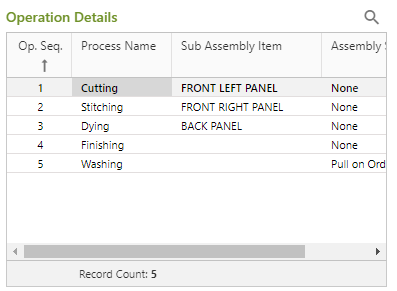
- Operation Detail: The Processes tagged with the route, will be populated in the Operation Details section with others details.
Component Item: The Items require to complete a particular process is called Component Item. You can check the required component items for selected process. You can Add or Edit the component items by clicking on the Add Component or Edit Component button respectively from.
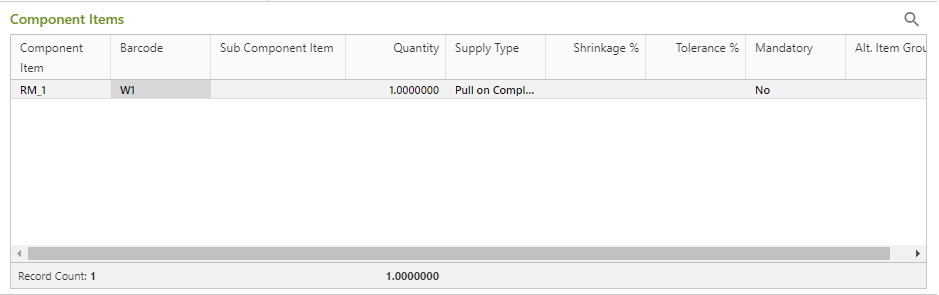
Note: The supply types of Component Item and Assembly Item are Pull On Order and Push.
Pull On Order: When raw materials are issued from Job Order and inventory out for it happens at once.
Push: When raw materials are issued from WIP Transaction and the job order is created much before.
- Click on the Save button to save the BoM.